WebStorage
Faculty and staff can use the WebStorage feature via eCampus for remote access to download and upload files on your authorized Adelphi network drives.
Faculty and staff can use the WebStorage feature in eCampus Services to remotely download and upload files to and from authorized Adelphi network drives.
- Log in to eCampus
- Under services, choose WebStorage
- Enter your Adelphi username and password again.
WebStorage has an option for an optimized mobile view. Once you are in the service, select “Settings” then “Mobile interface”. There are also native app versions available for HTTP Commander, however, some features are not supported.
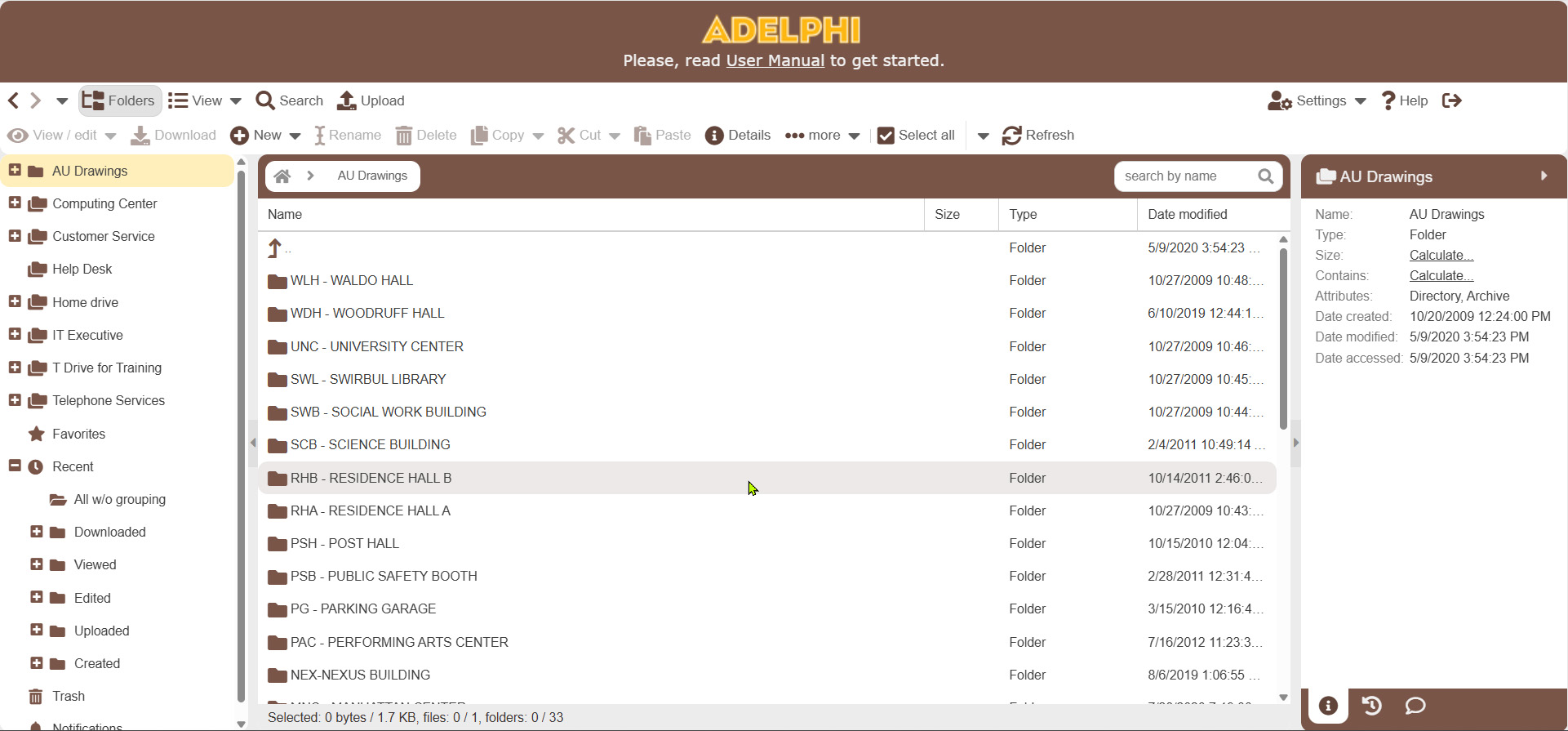
A view of the WebStorage interface, displaying folders that are listed within the Adelphi network.
Locations
Main Office
Hagedorn Hall of Enterprise LL
Help Desk
Swirbul Library, 2nd Floor
Hours
Regular Semester Hours
Connect